
Once you have a season created, you can easily invite people to play in it by sending a Season Invitation. If you still need to set up your season, check out this article.
Once your season is set up generate your invitation email with a click of a button!
1. On the Admin Area Dashboard in the Seasons Listing you should see your Season. Click the Manage Season Button.
2. On the season page Click the Manage Players Tab.
3. Click the Invite Players to Participate in this Season Button. This will generate your season invite and take you to the bulk emailer.
4. To invite all participants from the previous season Filter your recipients by a Season. In the Filter by Season Dropdown select the previous season.
5. Click the Filter Email Send List Button. Your recipients are now selected and ready to be emailed.
6. Optional: You can fine tune your email list by using the controls to move people from the Email List to the Exclusion List. By doing this, you can send yourself a test email before sending to the whole group.
7. Optional: You can tweak the content in your email to add additional information. Note: Avoid changing the links as this could affect the recipients ability to respond from their email.
8. In the Controls area click the Send Emails button! Your emails are on the go and you will see a send report.
Now what?
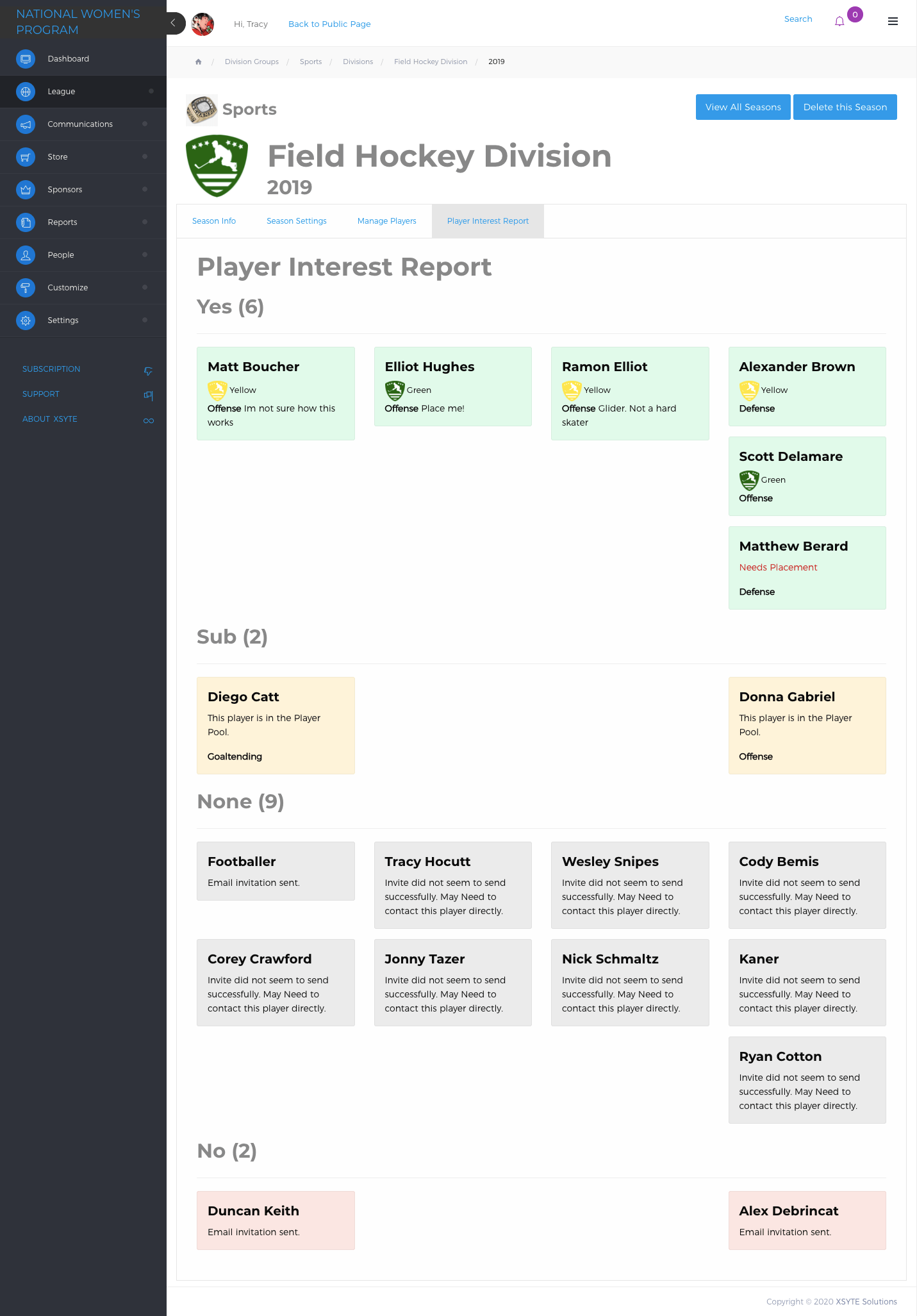
Player are receiving the emails and you can see responses in real time on your Admin Seasons Page under the Player Interest Report. You can use this area to track and manage potential players and their statuses. Use the Manage Players area to add more prospects or assign Players that have indicated interest to teams or the player pool!
Comments
0 comments
Please sign in to leave a comment.