
Give each team its own goal horn that plays whenever they score. This guide shows you how to prepare the audio, upload it to XSYTE, assign it to a team, and test it.
Before you start
Audio format:
.mp3Length: 10–20 seconds usually works best
Levelling: Make sure horns are roughly the same loudness so one isn’t much quieter than another
Tip: If you’re not a sound engineer, normalise to around –14 to –16 LUFS (or just “Normalise” to ~–1 dB peak) in a free editor like Audacity.Rights: Only use audio you have the rights to use. If you’re extracting a clip from a video, ensure you have permission.
Optional: If your horn comes from a video, you can convert it to MP3 with a video-to-audio tool, then trim/normalise in Audacity.
Step 1 — Upload your horn files
Go to Admin → Customize → Images & Files.
-
Click Upload Graphics and select your
.mp3files.Name them clearly, e.g.,
AussieGoalHorn.mp3,CanadaGoalHorn.mp3.
Step 2 — Assign a horn to a team
Go to Admin → League → Teams and open the team you want.
Scroll to Additional Settings → Team Colors.
Find Team Goal Horn and choose your uploaded
.mp3from the dropdown.Click Submit Changes.
Insert screenshot: “screencapture-ilha-hockeysyte-admin-team-956-2025-09-19-06_59_22.png” (Team edit page showing the Team Goal Horn selector)
Step 3 — Test it
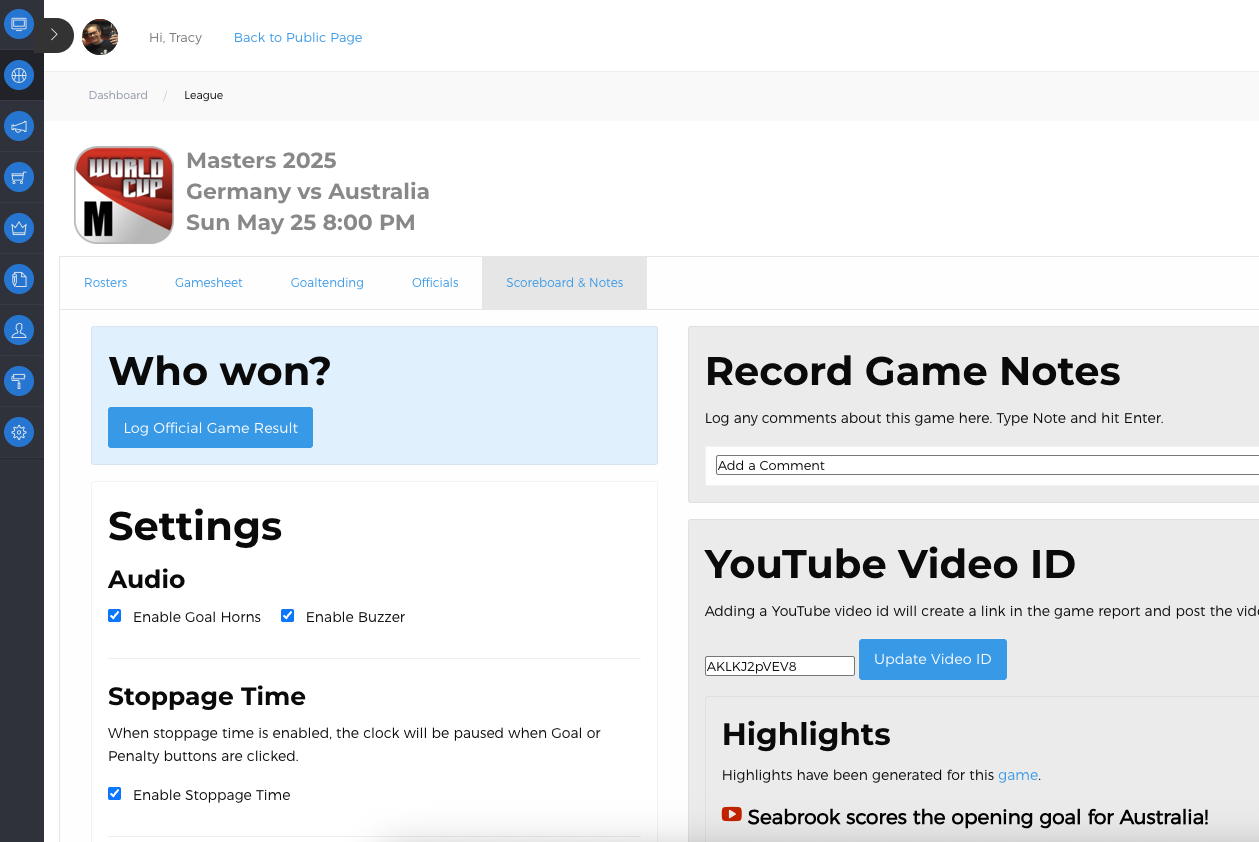
Open the Log Game page for the team.
Ensure the Goal Horn Audio Check Box is Checked on either the Log Game page or Scoreboard
You should hear the horn play when you click the Add Goal button on the Gamesheet Tab.
If you’re using a livestream, make sure your scoreboard device’s audio is routed to the stream (mixer/capture card) so viewers hear it too.
Tips & best practices
Keep it punchy: 10–20 seconds feels lively without dragging.
Consistent volume: Normalize multiple horns so none are too soft/loud in the venue.
Organize files: Use clear names per team to avoid mix-ups.
Default vs Team horn: A team’s Team Goal Horn overrides the Default Goal Horn.
Troubleshooting
I can’t select the file.
Make sure you uploaded an .mp3 (not .m4a/.wav) and that it’s in your organization’s library.It’s too quiet/too loud.
Re-open the file in Audacity (or similar), normalise, re-export to MP3, re-upload, and re-select it.No sound on the stream.
Verify the scoreboard computer’s audio output is connected to your mixer/capture path, Enable Goal Horns checkbox is ON and levels aren’t muted.
Sample Goal Horns
Use these example to test quickly:
Need help?
If you have questions or run into issues, contact us and include the team name and the horn filename you’re trying to use.
Comments
0 comments
Please sign in to leave a comment.